
- Remote troubleshooting for hard-to-reach devices in retail or signage environments
- Instant remote control to fix app crashes or reboot devices from your office
- Real-time status monitoring with alerts to resolve issues before customers notice
- Eliminate technician travel costs and streamline maintenance via one dashboard
How to Set Up an Android TV Box: Individual Setup & Business Deployment
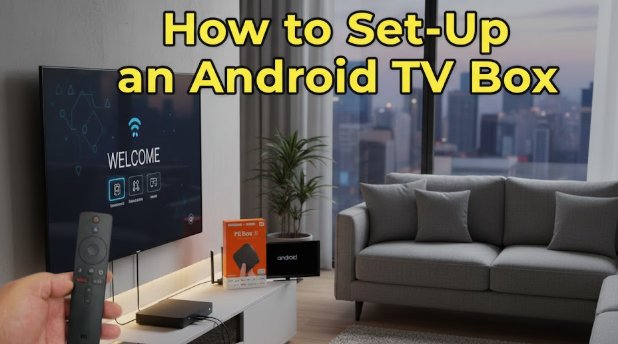
Setting up an Android TV box is a straightforward process completed in five key steps: connecting the hardware, pairing the remote, connecting to the network, logging into a Google account, and installing apps. This definitive guide not only provides a complete setup walkthrough and troubleshooting tips for individual users but also offers a professional Mobile Device Management (MDM) solution for businesses needing to manage large fleets of devices.
Setting up an Android TV box involves 5 main steps:
- 1. Connect Hardware: Link the box to your TV with an HDMI cable and plug in the power.
- 2. Pair Remote: Follow on-screen instructions to connect your remote via Bluetooth.
- 3. Connect to Network: Select your Wi-Fi network and enter the password, or use an Ethernet cable.
- 4. Sign in to Google: Log in to your Google account to access the Play Store.
- 5. Install Apps: Download streaming apps like YouTube, Netflix, and others from the Play Store.
15-Step Android TV Box Setup for Beginners
Completing the foundational setup of your Android TV box is quick and easy, typically taking only 10 to 15 minutes. Follow these sequential steps for a smooth installation.

1Connect Your Hardware
The Android TV box is connected to your display by linking it to the TV via an HDMI cable and then plugging in the power cord.
- HDMI Connection: Connect one end of the HDMI cable to the TV box and the other end to an available HDMI port on your television or monitor.
- Power: Plug the power adapter into the TV box and then into a wall socket. The device should automatically power on or present a start screen.
- Input Source: Ensure your television's input source is switched to the corresponding HDMI port (e.g., HDMI 1, HDMI 2) to display the box's output.
- Note: For older televisions without an HDMI port, an HDMI to RCA converter can be used, but this is highly discouraged due to significant image quality degradation.
2Pairing the Remote Control
The remote control is paired via Bluetooth by following the on-screen prompts, which typically require pressing and holding specific buttons.
- Pairing Process: Follow the instructions displayed on the TV screen. This often involves pressing and holding the Home and Back buttons simultaneously until a confirmation message appears, signifying that the remote is connected via Bluetooth.
- Language Selection: Select your preferred system language from the list provided.
3Connecting to the Internet (Wi-Fi or Ethernet)
The device connects to the internet by entering the Wi-Fi password in the network settings or by plugging in an Ethernet cable.
- Wi-Fi Connection: Navigate to the Network settings, select your Wi-Fi network name (SSID), and input the password using the on-screen keyboard.
- Ethernet Connection: If you prefer a wired connection, plug an Ethernet (RJ45) cable into the TV box and the wall or router.
- Important: If your Wi-Fi signal is weak, connecting directly via Ethernet is highly recommended as it provides a more stable and faster speed for streaming content.
4Logging in to Your Google Account
Logging into your Google account is essential for accessing the Google Play Store and linking your subscriptions.
- Login Method: Use your remote to manually enter your Google email address and password, or use the faster method by signing in on your mobile phone or computer as prompted on the screen.
- Post-Login Access: Once logged in to Google Play Store, you gain immediate access to the entire Google ecosystem, including the Google Play Store for applications.
- Crucial Note: Non-official or non-Google certified TV boxes may only install the mobile version of the Play Store. This limitation often prevents applications like Netflix or Prime Video from supporting full 4K or 1080p certified streaming quality. For the best streaming experience, certified devices (such as Mi Box or NVIDIA Shield) are necessary.
5Install Your Favorite Apps
The final step involves accepting service agreements, updating the system, and downloading essential streaming applications.
- Service Agreements: Read and accept the relevant Google and system service terms.
- System Updates: The system may automatically check for and install the latest firmware updates. Allow this process to complete without interruption.
- App Installation: Enter the Google Play Store and download necessary media applications, such as YouTube, Netflix, Disney+, and any local streaming services you require.
Scaling Your Fleet? Don’t Let Manual Setup Drain Your Productive Time
With AirDroid Business MDM, you can skip the manual labor. Remotely configure Wi-Fi, push essential apps, and apply system settings to your entire fleet of TV boxes simultaneously from one central dashboard.
2Troubleshooting Common Setup Issues
Minor issues can arise during the initial setup process. Here are the most common connectivity errors and straightforward methods for resolving them.
1What to Do If the Remote Will Not Pair?
If the remote fails to pair, first ensure the batteries are new and correctly inserted, then restart the pairing process.
- Check Batteries: Confirm the remote has fresh batteries installed with correct polarity.
- Power Cycle: Unplug the TV box from the power source for 30 seconds, plug it back in, and immediately attempt the pairing sequence (usually holding two buttons simultaneously) again.
- Obstruction Check: Ensure no physical objects are blocking the signal path between the remote and the box.
2Cannot Connect to the Wi-Fi Network?
Failure to connect is usually due to an incorrect password or network firewall settings.
- Verify Password: Double-check that the Wi-Fi password was entered correctly (case-sensitive).
- Router Distance: Move the TV box closer to the Wi-Fi router to ensure a strong signal.
- Reboot Network: Power cycle your router and modem by unplugging them for one minute and then restarting them.
- Frequency Band: Check if your router is using the correct frequency (some older boxes may not support 5GHz networks).
3How to Resolve Google Account Login Failure?
If login fails, the issue is typically a connection error or a security setting on your Google account.
- Check Internet: Verify that the TV box is connected to the internet before attempting login.
- Two-Factor Authentication (2FA): If you use 2FA, you might need to use the provided on-screen code to approve the login request on a trusted mobile device or generate an App Password from your Google security settings.
- Clear Cache: Go to the Apps section in Settings, find the Google Play Services app, and clear its cache and data.
4Screen Display Abnormalities or No Signal?
A "No Signal" message indicates a failure in the HDMI connection path.
- Input Check: Confirm that the television's input source is set to the correct HDMI port.
- Cable Swap: Try using a different, certified HDMI cable to rule out a faulty cable.
- Reboot Both: Power cycle both the TV box and the television simultaneously.
- Resolution: If you see an abnormal display, try connecting the box to a different TV; if the image is fine, the original TV may not support the box's default resolution.
5How to Handle App Crashing or Lagging?
App instability is solved by resetting the application state through Force Stop and Clear Data.
- Force Stop: Navigate to the Apps section in Settings, select the problematic application, and choose Force Stop to immediately halt its execution and reset it.
- Clear Data: If Force Stop is ineffective, proceed to Clear Data. This resets the app to its "freshly installed" state, deleting all user settings and login information. Use this as a last resort.
3Advanced Customization for Your TV Box
Once the basic setup is complete, you can customize your TV box with advanced settings to better match your usage habits, enhance functionality, and improve security.
1Tip 1. Connect a Keyboard Remote for Easy Typing
A keyboard remote with a built-in touchpad is highly recommended because it significantly improves the experience of entering passwords, searching, and navigation.
- Connection Method: Most keyboard remotes connect via a small USB receiver.
- Setup: Simply plug the receiver into an available USB port on your Android TV box. The device should automatically pair and function immediately, offering a better alternative to the standard D-pad remote for typing.
2Tip 2. Sideload Apps from Outside the Google Play Store
Applications not available in the Play Store (sideloaded apps) can be installed by enabling the "Install Unknown Apps" setting and using an APK file.
- Permission: First, navigate to the system Settings, find the Security or Apps section, and enable the option to "Install Unknown Apps" for the specific file manager or browser you will use.
- Installation: Transfer the application's APK file via a USB drive or download it using a file explorer app. Open the file to begin the installation.
- Professional Warning: Be vigilant about the security risks associated with unverified APK files. Only download and install packages from highly reputable and trustworthy sources to protect your device from malware.
3Tip 3. Clear Cache to Maintain Performance
Regularly clearing application cache and memory is essential to prevent slowdowns and maintain system performance.
- Cache Cleaner: It is advisable to occasionally use the Memory Cleaner or Cash Cleaner function (often indicated by a rocket icon on the home screen) provided by the system.
- Process: This process clears temporary files left behind by applications, freeing up RAM and improving overall responsiveness.
4Tip 4. Disable USB Debugging for Security
USB Debugging Mode should be disabled after setup to prevent unauthorized access and protect the device from potential security vulnerabilities.
- Access Developer Options: If you previously enabled Developer Options, navigate to that menu.
- Disable: Locate the "USB Debugging" toggle switch and ensure it is turned off.
5Tip 5. Hide Developer Options Completely
To eliminate potential misuse or accidental changes, the entire Developer Options menu can be hidden by clearing the settings app data.
- Steps: Go to the Apps section in Settings, locate the "Settings" application, and select Clear Data. This action will reset the flag that unlocked the Developer Options menu, effectively hiding it from view.
6Note: From Individual to Fleet: MDM Automation of Advanced Settings
For individual users, security and installation settings are manual, but MDM allows businesses to automate and enforce these controls instantly across hundreds of devices.
- All the critical functions discussed above—such as disabling debugging, enforcing app installations (sideloading enterprise APKs), and locking the device (Kiosk Mode)—are centrally managed and enforced automatically using an MDM platform.
- This capability represents the fundamental shift from tedious, error-prone individual configuration to professional, secure fleet deployment.
4Enterprise Solution: Bulk Deploy & Manage TV Boxes with MDM
When deploying dozens or hundreds of TV boxes for corporate offices, restaurants, or retail environments, manually configuring each unit is inefficient and error-prone. A robust Mobile Device Management (MDM) solution is the professional method designed to address these challenges.
1What is MDM and How Does It Simplify TV Box Deployment?
MDM (Mobile Device Management) is a centralized platform that allows administrators to remotely configure, distribute applications, and enforce security policies, including Kiosk Mode restrictions, across all TV boxes without physical interaction.
- Central Control: An MDM solution provides a single console from which an administrator can manage an entire fleet of devices, regardless of their geographical location.
- Efficiency: This eliminates the need for technicians to manually touch and set up every single device, vastly accelerating deployment timelines.
2Core Advantages of Using MDM for Bulk Configuration
Using MDM for bulk TV box configuration saves time, reduces operational costs, and guarantees security compliance and consistent operation.
- Powerful Kiosk Mode For commercial applications (like digital signage or guest services), reliable Kiosk Mode functionality is crucial. MDM enables you to lock the TV boxes into a single-purpose display, preventing users from exiting the designated app or webpage.
- Efficient Deployment Remotely push applications, including proprietary enterprise apps, to all devices simultaneously.
- Unified Management Unified Management: Enforce security policies fleet-wide, such as bulk disabling USB debugging and Developer Options to prevent unauthorized tampering and ensure every device meets security standards
- Remote Maintenance: Remotely view device screens, troubleshoot issues, and restart devices, significantly cutting down on expensive on-site maintenance calls.
3Case Study: AirDroid Business for Android TV Box Fleets
AirDroid Business offers powerful remote control, Application Management Services (AMS), and a highly customizable Kiosk Mode specifically tailored for Android-based displays.
Key Features: The platform provides robust capabilities for remote control, Application Management Services (AMS), and automated monitoring, crucial for maximizing uptime in digital signage deployments.
Real-World Case Study: A digital media solutions provider using Amlogic TV Boxes for retail and transport clients streamlined operations with AirDroid Business MDM.
- Unattended Remote Control: Technicians used the remote function to instantly troubleshoot, adjust system settings, and reboot devices without needing on-site staff.
- Monitoring and Maintenance: Remote screen viewing and screenshot tools allowed the team to verify content playback in real-time.
- Application Management: Custom digital signage apps were reliably updated and pushed via centralized Application Management.
- Proactive Alerts: The device crash alert function provided immediate notifications upon application failure, ensuring proactive maintenance and continuous information delivery to clients.
5Conclusion: Choosing the Right Setup Method for Your Needs
The ideal setup method depends directly on the scale and purpose of your Android TV box deployment.
- For Individual Users: Simply follow the standard setup process outlined in the first half of this guide to easily enjoy the entertainment experience provided by your Android TV box.
- For Commercial Users: If you plan to use Android TV boxes for digital signage, information display, or any critical commercial scenario, adopting an MDM solution like AirDroid Business is strongly advised. It will save substantial time and operational costs while ensuring the security and stability of your devices.


Leave a Reply.